Why the app starts in Korean
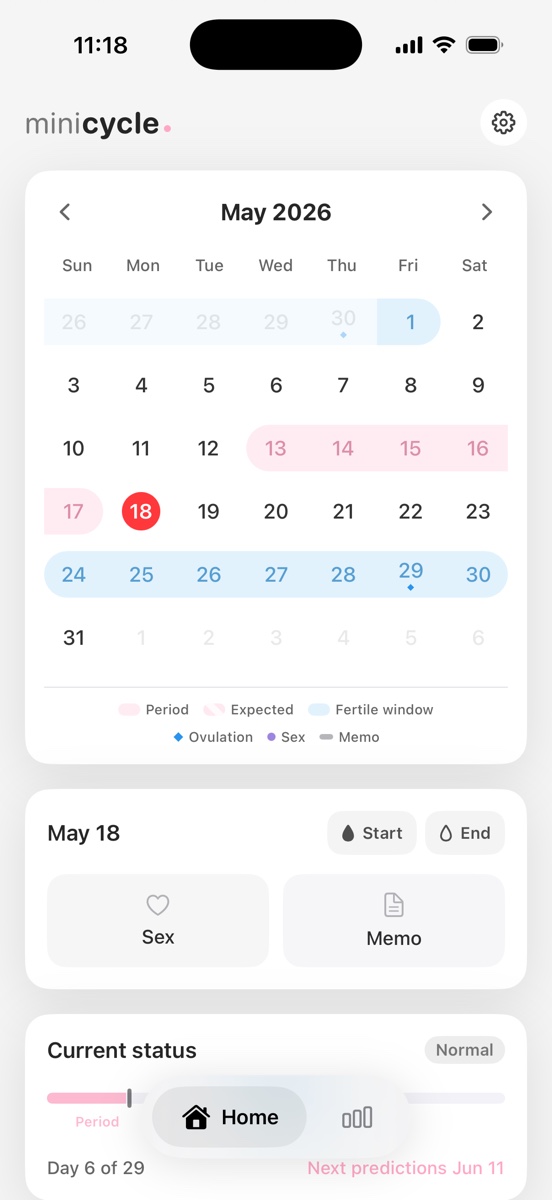
MiniCycle uses its own language setting rather than automatically following the iPhone language. A new installation starts in Korean, and the two available app languages are Korean and English.
The choices remain labelled 한국어 and English in both interfaces, so you can identify either option after switching.
Switching to English, without reading Korean
Open the app and tap the circled gear at the top right of the calendar screen. That is Settings. In the second group of rows, look for the globe icon: next to it is a two-option switch, and one option reads English. Tap it. The change is immediate, with no restart and no confirmation step.
Every label in the calendar, statistics, and settings flips at once, and dates reformat to English conventions along with them. The month header turns from 2026년 6월 into Jun 2026, a selected day from 6월 12일 into Jun 12, and the weekday letters across the top of the calendar switch too. The same switch works in reverse at any time, and 한국어 will be legible right where you left it.
Your iPhone's language has nothing to do with it
A reasonable first instinct is to change the phone's system language and expect the app to follow. With MiniCycle that does nothing. The app reads only its own setting, so an iPhone switched to English still opens a Korean MiniCycle, and vice versa. The reverse direction also holds: setting the app to English leaves your iPhone exactly as it was.
If you actually want the entire phone in another language, that lives in iOS Settings under General, then Language & Region, and Apple documents the steps. But you never need to go there for this app. The in-app switch is the whole job.
Reminders and the widget follow the language
If you use period, fertile-window, or ovulation reminders, changing the language reschedules their text in the selected language while preserving the timing settings.
The home-screen widget reads the same stored language preference. The app requests a widget refresh after a change, but iOS decides when the updated widget appears.
System, Light, or Dark: the appearance setting
The first group in Settings, marked with a moon icon, holds the appearance control with three choices: System, Light, and Dark. The default is System, which hands the decision to iOS. When the phone enters dark mode, the app follows. If you keep your iPhone on a dark-mode schedule, Apple's automatic option runs sunset to sunrise or any custom hours you set, and MiniCycle changes over on that schedule without further attention.
Dark mode in MiniCycle is a near-black gray rather than pure black, with date cards and panels a step lighter so the structure stays readable, and the soft shadows of light mode removed, since they add nothing against a dark background. The calendar marks keep their hues: pink for period days, sky blue for the fertile window, a deeper blue for ovulation day, purple for activity. Their fills are painted slightly stronger in the dark so they hold up. A legend you learned in light mode needs no relearning.
One honest limit, and what never changes
Forcing Light or Dark inside the app changes the app alone. The home-screen widget is drawn by iOS in whatever appearance the phone itself is in, because dark mode is a systemwide setting, so an app forced to Dark can sit behind a light widget all afternoon. If you want the app and the widget to match around the clock, leave the appearance on System.
Neither setting reaches your data. Period records, notes, cycle and period length settings, and every predicted date are identical before and after any combination of switches. And the marks mean what they always meant: predicted period, ovulation, and fertile-window dates are estimates calculated from your records, reference information rather than medical advice or contraception, in either language and either mode.
MiniCycle for iPhone
Try MiniCycle
MiniCycle is built for a clean iPhone period calendar, local records, simple statistics, and a home screen widget.
MiniCycle editorial